A list tells you what there is to do. You can sort by due date, but a sorted list still shows a task due on Friday the same way as one that has been running since Monday and ends on Friday. The shape of the next few weeks, what overlaps, what is back to back, where the gap is, stays in your head.
A list can now be shown as a Gantt chart. Pick it from the view menu at the top of the list, next to the kanban board and the dependency graph.
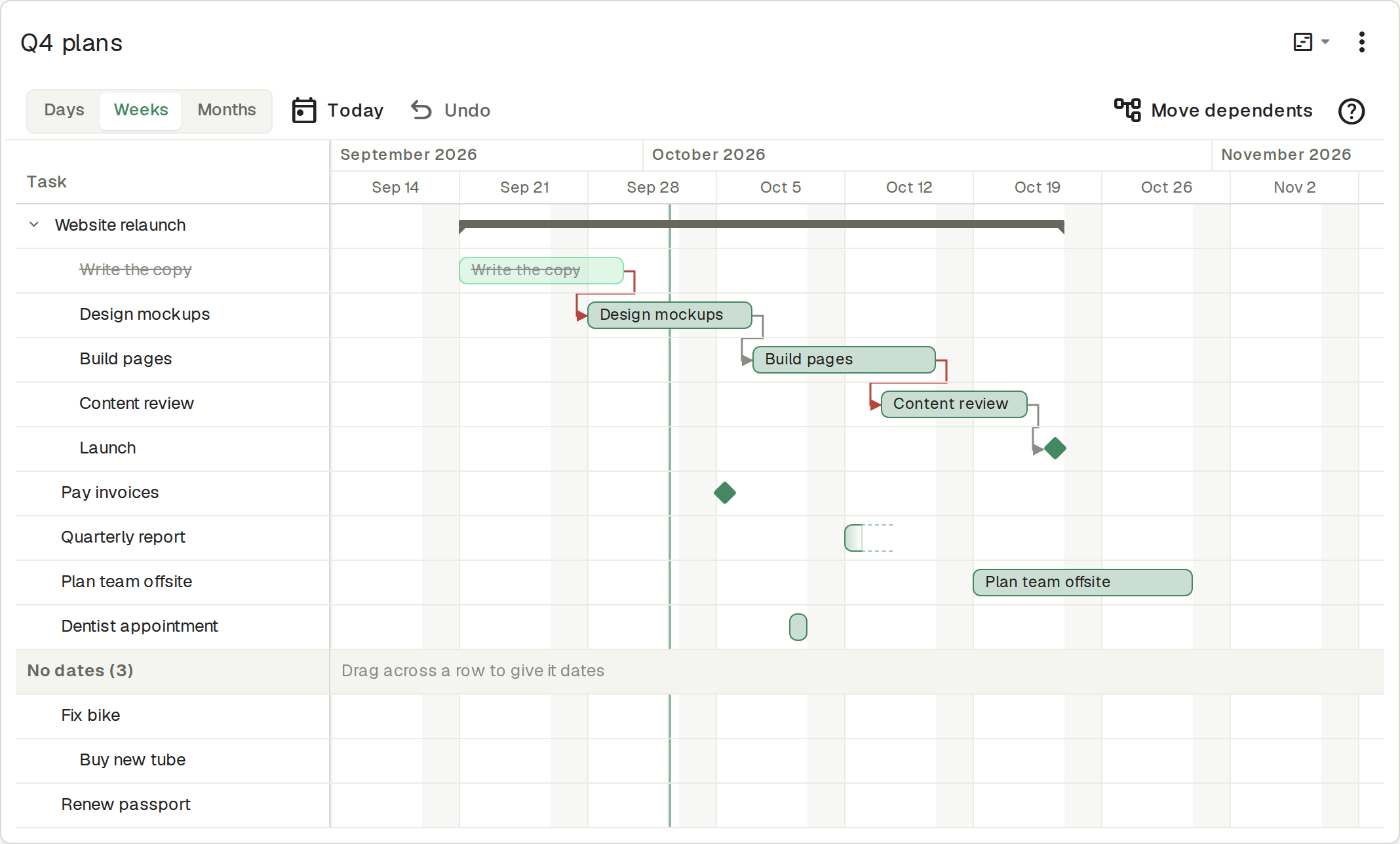
What you are looking at
Every task with a date gets a row and a bar. The bar runs from its start date to its due date, both included.
- A bar is a task with both a start and a due date.
- A diamond is a task with only a due date: a deadline, a milestone, a bill.
- A bar that fades out is a task with only a start date. It has begun; nothing says when it ends.
Subtasks sit indented under their parent, and the parent gets a bracket over the days its subtasks cover, so a project reads as one span before you open it up. Finished tasks stay in place, struck through, so you can see what is already behind you. The green line is today.
Tasks without any dates are not hidden. They are collected at the bottom under No dates, and you give one a date by dragging across its row.
Dependencies, drawn
If you link tasks with dependencies, the chart draws them: an arrow leads from a task to each task that waits on it. When a task is scheduled to start before something it depends on is due, the arrow turns red. In the chart above, Content review starts while Build pages is still running, and the chart says so without you having to compare dates.
Changing dates by dragging
Drag a bar to move a task. Drag either end to change only its start or its due date. With a bar focused, the arrow keys move it a day at a time, and with Shift they move its due date. Click a task to open it and edit everything else.
Moving one task in a chain raises the obvious question: what about the tasks waiting on it? The answer is yours to choose under Move dependents:
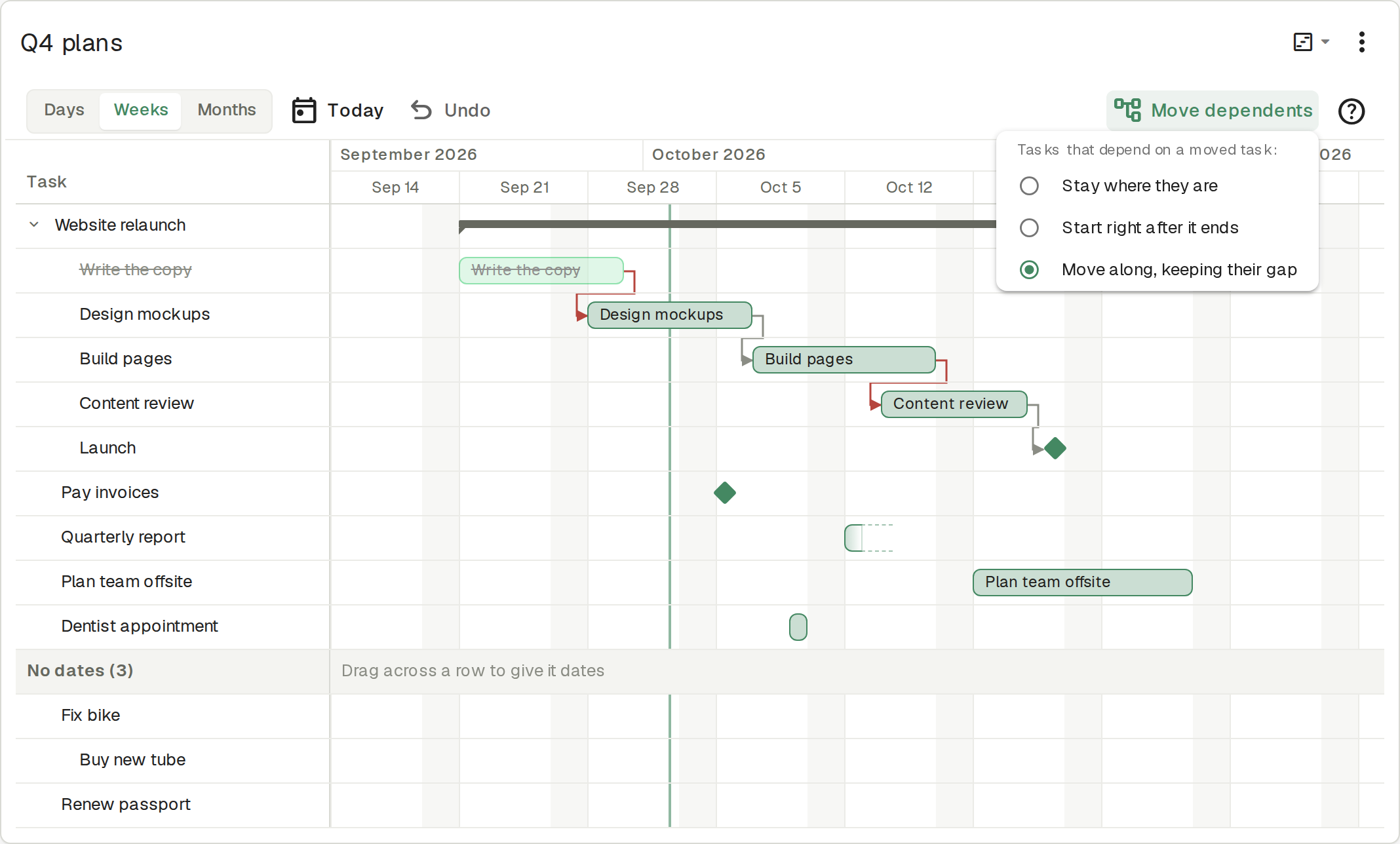
- Stay where they are. The default. Only the task you dragged moves, and red arrows show you what now needs attention.
- Start right after it ends. Each dependent is moved to begin the day after the task it waits on.
- Move along, keeping their gap. Push Build pages back a week and everything after it shifts by a week too.
And if a drag did more than you meant, Undo takes back the last date change, including any dependents that moved with it. Press it again to step further back.
Days, weeks, months
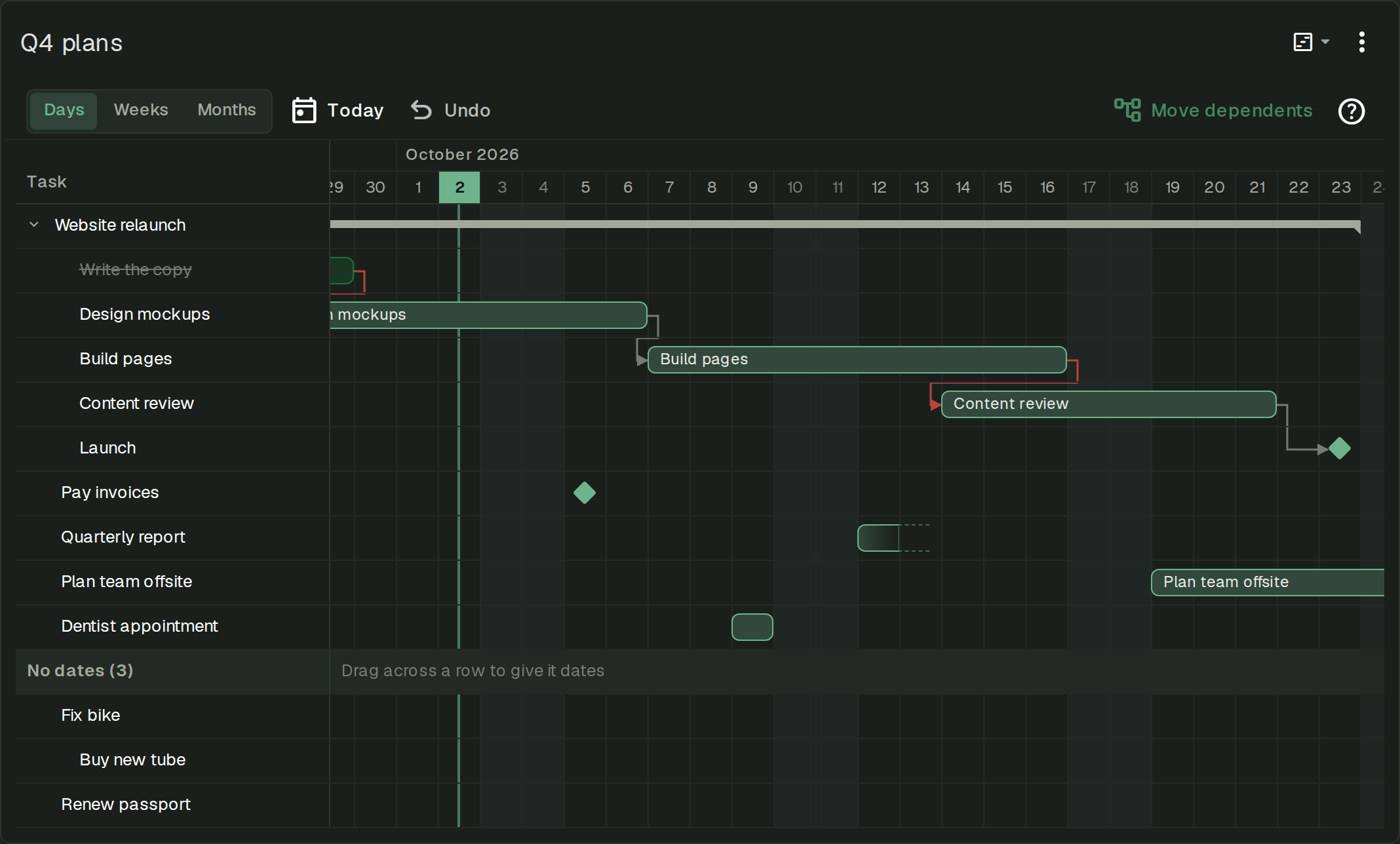
Zoom between days, weeks and months depending on whether you are planning this week or this quarter. Today brings the current date back into view. The chart follows your theme, so it looks at home in dark mode too.
Still a list
Nothing about your tasks changes when you switch views. The Gantt chart shows the same list, in the same order, loading more as you scroll the way the list does. Switch back and it is a checklist again.
It is the same work, seen from the side where the calendar is.